
Workstations allow you to organise exactly where somebody will be working within a roster when using Shift View. They are a subset of a roster and will be included in any communication with the staff member once a shift is published. This means an employee will be able to go straight to the correct workstation or area of the business once they start. It allows roster managers to create shifts in a more linear, efficient pattern and group shifts for easier visibility.
- Go to the desired roster to add the workstation
- Click on the edit roster button
4. Choose the Workstations tab in the Edit Roster window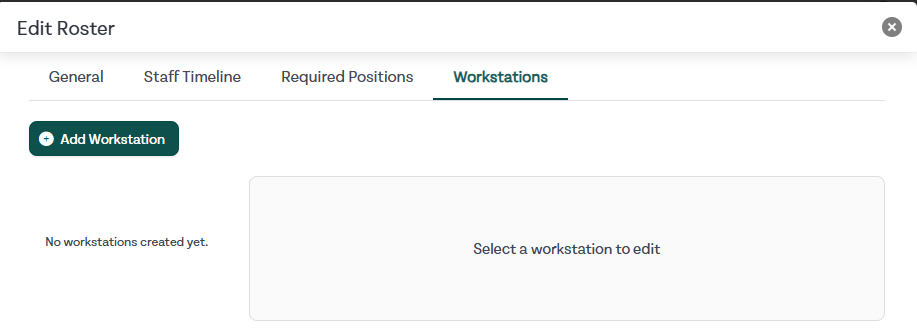
5. Add a workstation by selecting the Add Workstation button
6. Complete the required information including the Name of the Workstation and the Abbreviation (which will appear on the roster shifts)
7. Optionally pick a specific colour for your workstation and fill out the Description field 8. Once you are happy, submit the workstation and it will be visible in the Shift View of the Roster